Your browser says your passwords leaked. What that actually means.
Everybody gets password leak notifications. You're working on something or poking around the web and — bong — it slides out: your passwords have been found in a data breach, like 101 passwords.
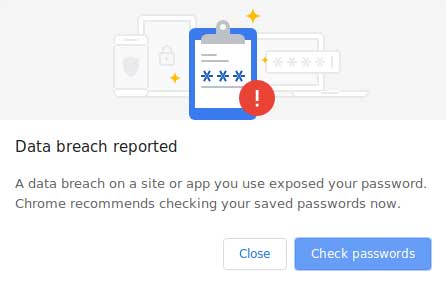
You scrunch your brow and scroll through the list and it dawns on you that you'd rather be eaten by sharks than go to all those sites and deal with it. So you close the window and move on, with it lingering in the back of your head. Am I being stupid? Do I need to deal with this? We all should, but the process is so tedious and piecemeal and confusing that we don't. So you get:
"A data breach on a site or app exposed your password."
Or sometimes:
"Your password was exposed in a non-Google data breach."
First, "non-Google data breach" means the leak happened at some other company, not at Google. Your Google account is fine.
As for the password breach, here's what that actually means and what to do about it in a way that, hopefully, doesn't take up your afternoon.
What triggered it
Your browser keeps a list of the passwords you've saved. Somewhere in the background, it started comparing that list against known data breaches.
The important part, because people worry about this: your browser did not send your passwords anywhere. Both Chrome and Safari use a method that lets them check without transmitting the actual password. Your browser sends a small piece of a scrambled version, gets back a batch of possible matches, and does the final comparison on your own machine. Google and Apple never see what your passwords are.
So the check itself is safe. It's the results that are the problem.
Why so many
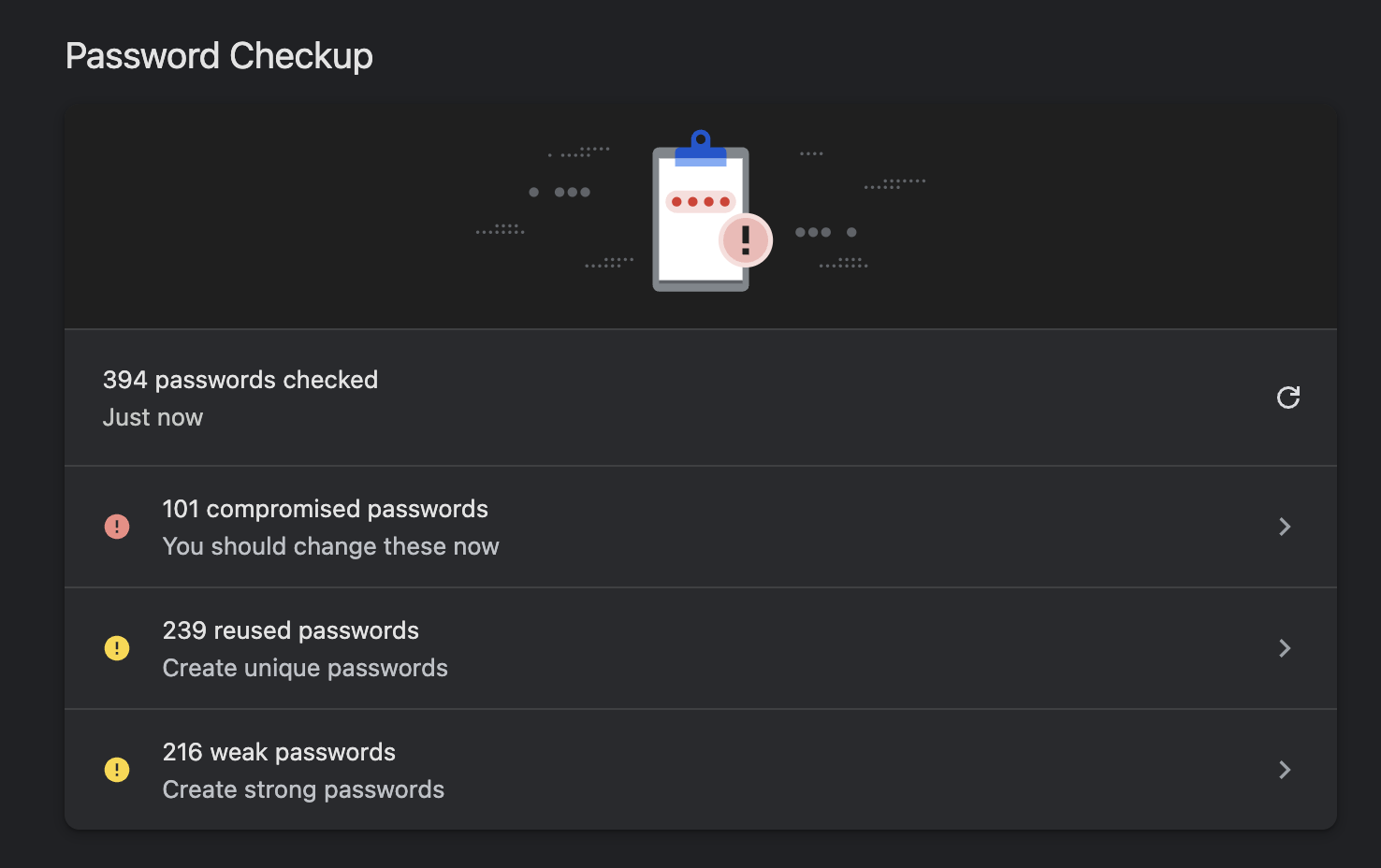
Your browser checks every password you've ever saved against every breach it knows about, and they sit there staring at you every time you click on a notification or open your password manager. Some of those breaches are ten years old. Some are from sites you forgot you had an account with.
You're looking at a decade of accumulated exposure, presented in a single list with no context. That's why it feels like a catastrophe when it's really a backlog.
What it means, and what it doesn't
It means that the password appeared somewhere in a collection of leaked credentials. Somebody, at some point, got hold of it.
It does not mean that account was broken into. It doesn't mean anyone is in your email right now. It doesn't mean your computer has a virus. The warning is about a password being exposed, not about an account being used.
The actual risk is reuse
What matters more than any individual leaked password is reuse.
When a password leaks, attackers don't just try it on the site it came from. They take the email and password together and try them automatically on hundreds of other sites. Email providers, banks, shopping accounts, everything. It costs them almost nothing to try.
So a password that leaked from some forum in 2016 is dangerous only if you used it somewhere that matters. If you used a unique password on that forum and never again, the leak is close to harmless.
Which means the question isn't "How do I fix 47 passwords?" It's "Which of these did I reuse?"
What to do, in order
- Your email. Whoever controls your email controls everything else, because that's where password resets go. If your email password is on the list, change it now.
- Anything with money attached. Banking, anywhere your card is saved, anywhere you can spend or move money — update your password, and better yet switch to a passkey or two-factor authentication of some kind.
- Anything you reused. This is the big one. Look down the list and find the passwords you recognize as one you've used repeatedly. Those are the ones that turn a single old leak into a real problem.
- Everything else. Eventually. A leaked password on an account you don't care about, with nothing attached to it, is a low-priority chore.
If you do the first three, you've handled most of the actual risk. The rest is housekeeping.
Don't just change one character
The obvious shortcut is to take the leaked password and add a number, or a punctuation mark, or bump the year at the end.
That doesn't work. Attackers know people do this, and the tools that try leaked passwords also try common variations of them automatically. Adding a "1" or changing "2023" to "2024" buys you nothing.
Each new password needs to be genuinely different — and different from every other password you have.
Which is why people use password managers
If you're going to have a different password for every account, you can't remember them. That's not a personal failing, it's arithmetic.
Your browser already has one built in — and it's the one showing you this warning. That's fine for most people. A dedicated password manager gives you more, mostly around sharing, syncing across different browsers, and storing other kinds of information.
The honest advice is that the built-in one is good enough for most people, and the best password manager is the one you'll actually use. If your browser is already holding forty-seven passwords, you're using a password manager. You just didn't call it that.
Turn on two-factor while you're here
For your email and your bank, at minimum.
Two-factor means a stolen password isn't enough on its own. Someone would also need a code from your phone. It's the single biggest improvement you can make, and it takes a couple of minutes per account.
An app that generates codes is meaningfully safer than text messages, because phone numbers can be hijacked. But text messages are still far better than nothing.
What this doesn't fix
Changing a leaked password stops that password from being useful. It doesn't remove your data from the breach it came from. That information is out there permanently, and no service can pull it back, whatever they advertise.
It also doesn't help with any account where the damage is already done. If someone got into an account months ago, changing the password now closes the door behind them but doesn't undo what happened inside.
Which is an argument for doing this today rather than the next time the warning appears.
Doing it with Patch
Patch shows you the same information the browser does, sorted by what actually matters first, and walks through the fixes rather than handing you a list and leaving.
Your email gets checked once against Have I Been Pwned, a trusted breach database, and then discarded. There's no account, and nothing you check is kept — so there's nothing sitting on a server to steal.
Get Patch for Mac
No account, no payment. See your breaches sorted by what matters, and fix them one at a time.
Download Patch for Mac